The $8 Plus plan does not include Grok Bot. A team seat is the same $30 a person, and a personal Premium account is still enough to start. Start with one bot. Each bot you add uses more of the plan. Price list (opens in a new tab).
Not sure which? If you want the easier start and can live with an occasional no, pick Claude Cowork. If you would rather it do what you ask and can spend longer learning it, pick Grok Bot.
The next steps
Install it, connect your mail, try a file
The office work is the same either way. The clicks are different, so pick your tool here and the steps change to match. Grok Bot has one more step, about its bots. Claude is a chat, so that step is not there.
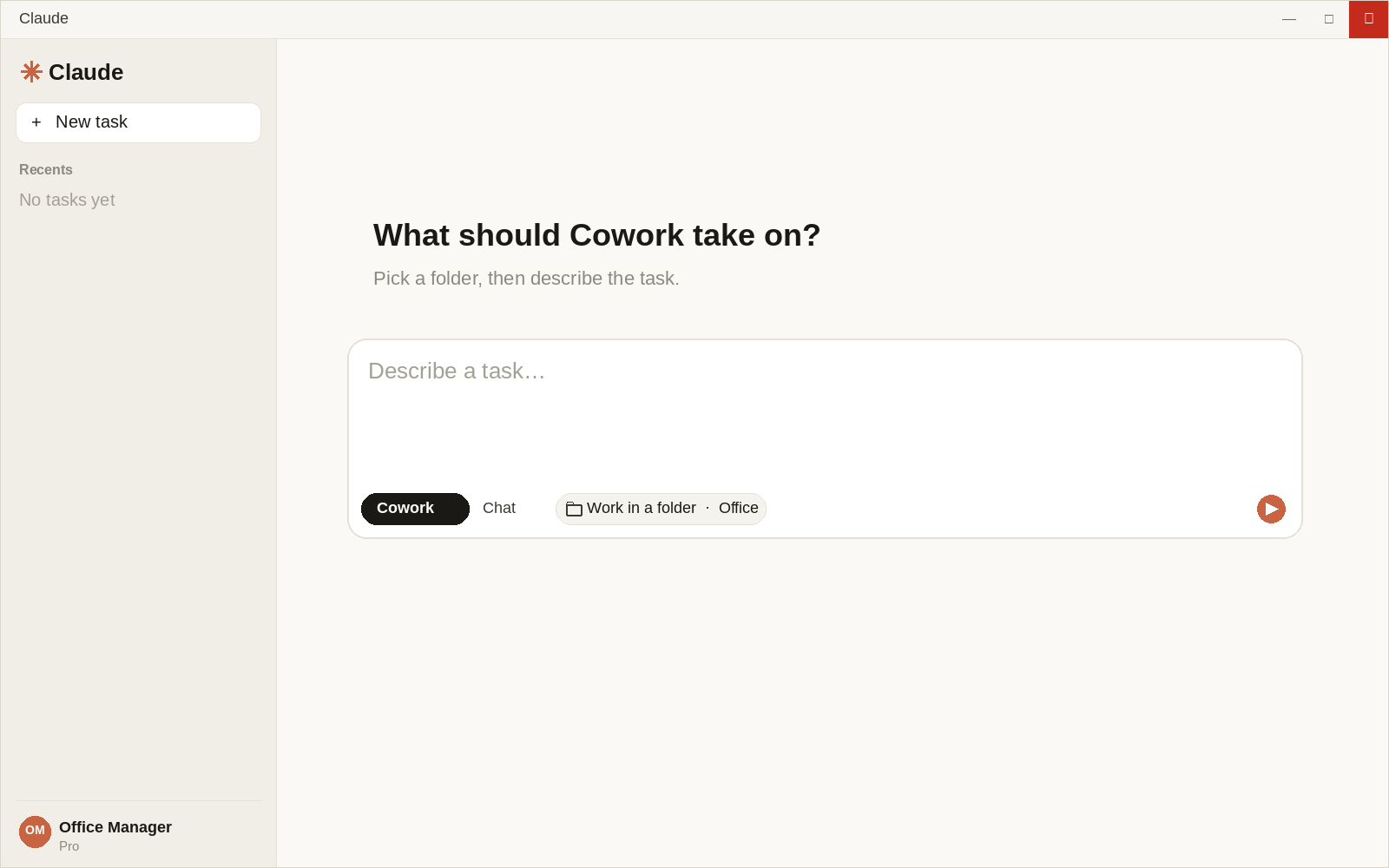
In the message box, click Cowork at the bottom left.
Done when Cowork is selected and the message box is empty. If you don’t see the words Chat and Cowork, that’s fine. Type your task in the message box.
Demonstration picture, not a real account.
Step 3 of 4
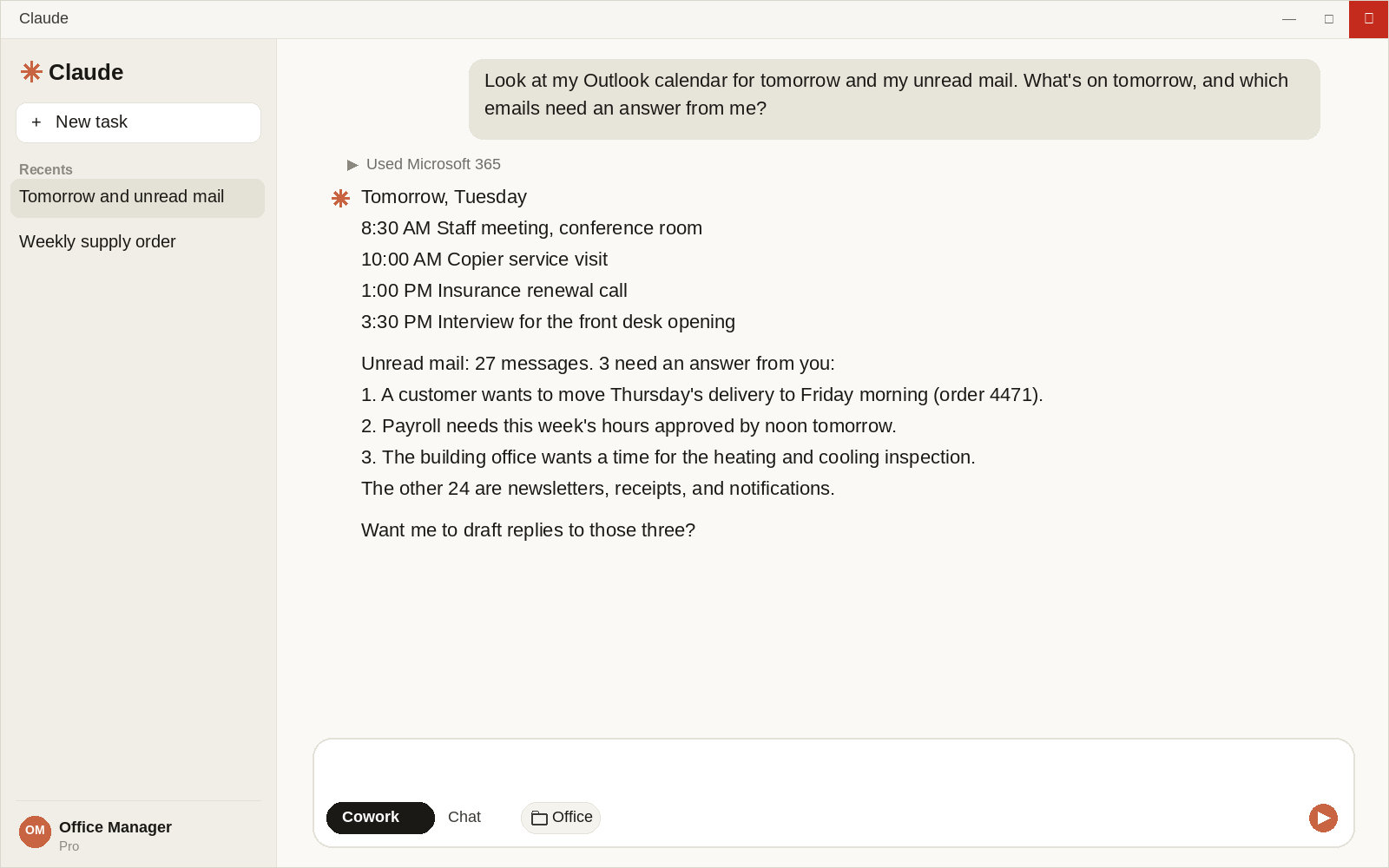
Tomorrow’s schedule and your unread mail
In the Claude app, click Customize, then Connectors.
Find Microsoft 365 and click Connect.
Sign in with your work Microsoft 365 account. A personal Outlook.com address won’t connect.
Back in Cowork, click + at the lower left of the message box, then click Connectors, and turn on Microsoft 365.
Then ask:
Type this
Look at my Outlook calendar for tomorrow and my unread mail. What’s on tomorrow, and which emails need an answer from me?
Check the answer against Outlook. Then ask: “Write short replies to those three. I’ll send them myself.”
If the sign-in says an administrator has to approve it: Microsoft 365 needs a one-time approval before anyone can connect. Contact us and we will assist. Until more access is turned on, it can read your mail and calendar but can’t send or change anything.
Demonstration picture, not a real account.
Step 4 of 4
A file you already have
Make a folder, for example Office in Documents, and put a copy of an Excel sheet, Word document, or PDF in it. Use a copy the first time.
In the message box, click Work in a folder and choose that folder.
Ask the way you would ask a coworker:
Type this
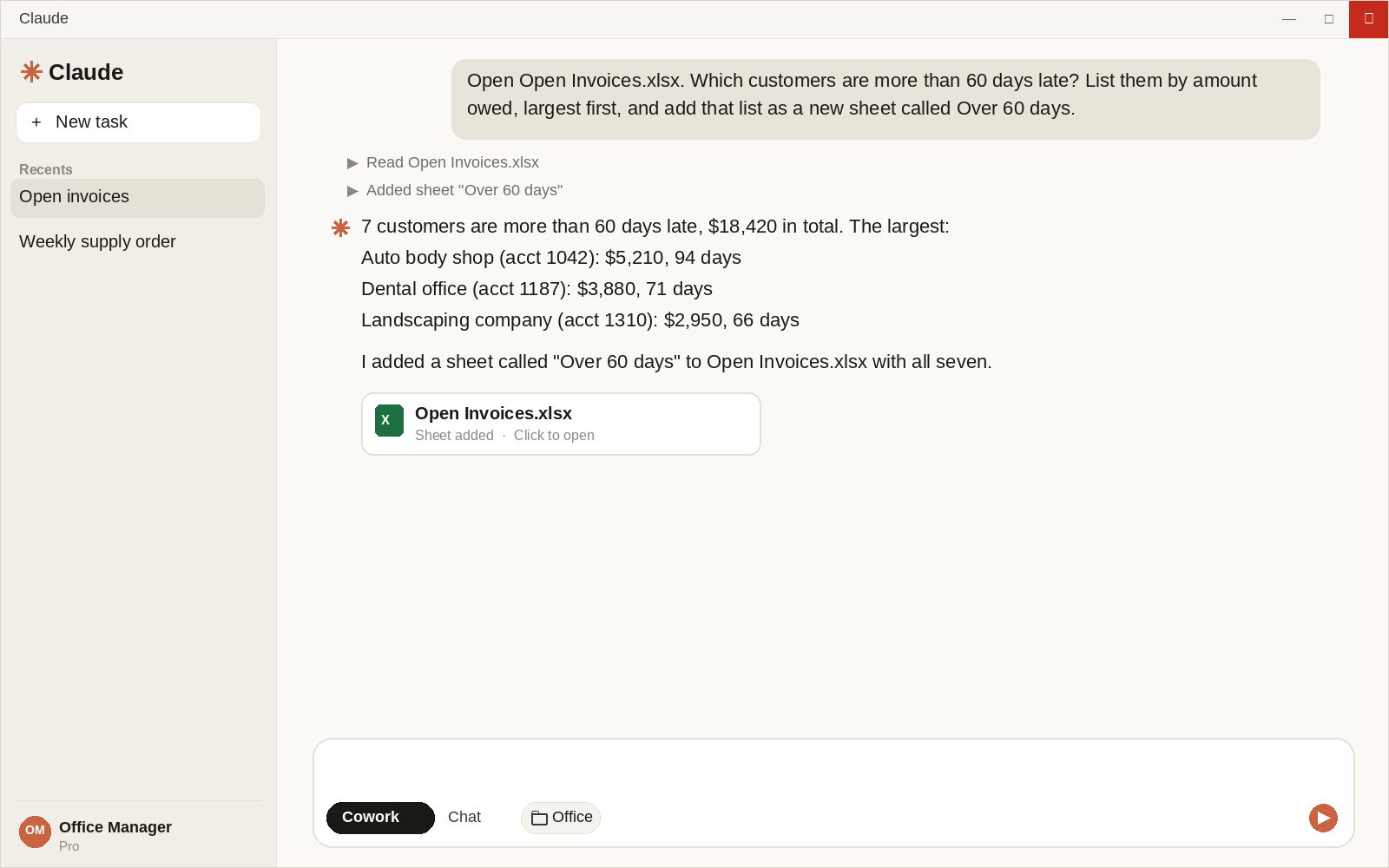
Look at Open Invoices.xlsx. Which customers are more than 60 days late? List them by amount owed, largest first, and add that list as a new sheet called Over 60 days.
Keep the Claude app open while it works.
Open the file in Excel and look at the new sheet.
Try it next on a Word document (“List every rule about time off in Employee Handbook.docx”) or a PDF (“List every charge over $500 in Supplier Statement.pdf”). If an answer isn’t right, say what’s wrong and ask again.
A browser window opens. Finish signing in there with the account that has Premium, then come back to Grok Bot.
When it asks for your first bot, name it. These steps call that bot Boss Bot. Any name is fine.
Done when Boss Bot is on the left and the message box is empty. The left side is your bots, not old chats.
Demonstration picture, not a real account.
Step 3 of 5
Start with one bot
Do the next two steps with Boss Bot alone.
Add another bot only when Boss Bot tells you the job needs one. Click + at the top of the left side, name the bot, and create it.
Name it for the job. Researcher, Editor, and Operations are examples. Any names are fine. The pictures call the group Work Bots.
Every bot draws from the same plan. The more bots you add, the more of that plan they use.
Claude does not have this step. Claude is one chat. It does not keep a list of bots.
Demonstration picture, not a real account. Example names.
Step 4 of 5
Tomorrow’s schedule and your unread mail
In the sidebar, click Connect apps.
Search for Outlook and add it. When it asks, click Authorize and sign in with your work Microsoft 365 account in the browser.
Do the same for Outlook Calendar.
Check that both are listed under Installed. If one says Needs auth, open it and click Authenticate.
Once they are connected, Boss Bot can answer questions about your email and your calendar. Just ask:
Type this
Look at my Outlook calendar for tomorrow and my unread mail. What’s on tomorrow, and which emails need an answer from me?
Check the answer against Outlook. Then ask: “Write short replies to those three. I’ll send them myself.”
If the sign-in says an administrator has to approve the app: Microsoft shows an approval link. Contact us and we will assist. Then connect again.
Demonstration picture, not a real account.
Step 5 of 5
A file you already have
Drag an Excel sheet, Word document, or PDF into the message box, or click the attachment button and pick it.
Ask the way you would ask a coworker:
Type this
Look at Open Invoices.xlsx. Which customers are more than 60 days late? List them by amount owed, largest first, and add that list as a new sheet called Over 60 days.
The finished file comes back as a card in the chat. Open the card and save the file to your computer.
Open it in Excel and look at the new sheet. Your original file stays as it was.
Try it next on a Word document (“List every rule about time off in Employee Handbook.docx”) or a PDF (“List every charge over $500 in Supplier Statement.pdf”). If an answer isn’t right, say what’s wrong and ask again.
Demonstration picture, not a real account.
If you get stuck
Tech Direct Services will help.
Contact us and we will assist. The usual places people get stuck:
The app won’t install on a work computer.
The Microsoft sign-in says an administrator has to approve it. Contact us and we will assist.
You’re not sure which plan or account you signed up with.
It said no, or got something wrong, and you’re not sure how to ask again.
Claude Cowork and Grok Bot are prebuilt software, used by one person at a time in a chat window. respawn is the AI software Tech Direct Services builds for an office, running many separate tasks and workflows automatically. Below are some examples of when it’s time to upgrade.
The whole office should be on it.
Each person gets their own assistant, and they all work from the same business context.
The work should run on its own.
Mail comes in and the work moves by your rules, without someone opening a chat window to ask.
Your data should stay on your hardware.
Your data, workflows, tools, and secrets stay protected on hardware you own, instead of in a vendor’s cloud.
You’ve outgrown prebuilt software.
It should work the way your office already works, not the way someone else’s app was built.